


Bonita Studio Docker Environment
| This feature is available for Subscription editions only. |
The Bonita Studio Docker Environment lets you run Bonita Studio in a fully containerized setup, accessible from any web browser — without installing Bonita Studio, Java, or any graphical environment on the host machine.
This solution is particularly useful for teams that want to:
-
Provide developers with a ready-to-use, pre-configured Bonita Studio through a simple URL, eliminating environment setup and "works on my machine" problems.
-
Run Bonita Studio on remote servers, virtual machines, or cloud infrastructure where a local desktop environment is not available.
-
Deliver a consistent and reproducible development environment across all team members, regardless of their operating system (Linux, macOS, Windows with WSL2).
-
Integrate Bonita Studio into CI/CD pipelines or shared infrastructure where on-demand access to a full Studio instance is needed.
Bonita UI Builder is included and pre-configured with Single Sign-On, so the full development experience — process modeling and UI building — is available directly from the browser session.
How it works — user perspective

From a developer’s point of view, the experience is straightforward: open a browser, navigate to the server URL, authenticate, and start working in Bonita Studio immediately — no installation, no local setup, no dependency on the host operating system.
Bonita UI Builder is accessible from within the Studio session with Single Sign-On already configured — no extra login or setup required.
How it works — architecture overview
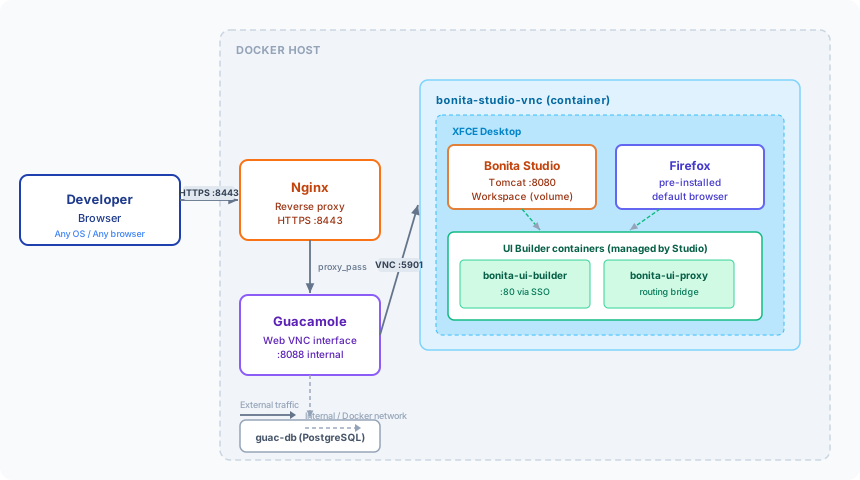
The environment is built on Docker Compose and combines several components:
-
Bonita Studio runs inside a container on an XFCE desktop (a lightweight Linux graphical environment) with Firefox pre-installed.
-
Apache Guacamole provides the browser-based remote desktop interface over VNC, so no VNC client or X11 setup is needed on the user’s machine.
-
Nginx acts as a reverse proxy with HTTPS, exposing a single secure access point.
-
Bonita UI Builder is managed by Bonita Studio from within the container and accessible via SSO from the browser session.
The user’s browser connects to Nginx (HTTPS), which routes to Guacamole, which in turn streams the Studio desktop over VNC. All traffic stays within the Docker network except for the single HTTPS entry point.
Requirements
Getting the installation package
| The Docker environment package is not publicly distributed. To receive the package for your Bonita version, please open a request with Bonitasoft Support. |
You will also need:
-
A Bonita Studio Subscription archive (
BonitaStudioSubscription-<version>.tar.gz), available from the Bonitasoft Customer Portal. -
A valid Bonita license file (
.lic). -
Your JFrog Artifactory credentials (
JFROG_USERNAME/JFROG_PASSWORD) to pull Bonita UI Builder images. These are provided with your subscription.
Setup
Once you have received the package from support, follow these steps.
1. Place the Bonita Studio archive
Copy your Bonita Studio Subscription archive into the bonita-studio-vnc/downloads/ folder inside the package:
mkdir -p bonita-studio-vnc/downloads
cp /path/to/BonitaStudioSubscription-<version>.tar.gz bonita-studio-vnc/downloads/
2. Create the environment configuration file
Create a .env file at the root of the package with the following content, replacing placeholder values with your actual credentials and settings:
# PostgreSQL (Guacamole internal database)
POSTGRES_DB=guacamole_db
POSTGRES_USER=guacamole_user
POSTGRES_PASSWORD=<ChangeMe123!>

# VNC session password
VNC_PASSWORD=vncpassword

# Bonita version (must match the archive placed in downloads/)
BONITA_VERSION=2025.1-u0

# JFrog Artifactory credentials (provided with your subscription)
JFROG_USERNAME=<your_username>
JFROG_PASSWORD=<your_password>

# Timezone
TZ=Europe/Paris

# JVM memory settings
_JAVA_OPTIONS=-Xmx4g -Xms2g
3. (Optional) Add a Bonita license file
If you have a license file, place it at the root of the package:
cp /path/to/license.lic ./license.lic5. Generate SSL certificates
Run the certificate generation script to enable HTTPS:
./generate-certs.shTo use a custom hostname or organization name:
SSL_ORGANIZATION="My Company" SSL_COMMON_NAME="studio.example.com" ./generate-certs.shFor production environments, replace the generated self-signed certificate with a certificate from a trusted Certificate Authority by placing your server.crt and server.key files in the nginx/certs/ directory.
Accessing Bonita Studio
Open a browser and navigate to:
https://<your_server_IP>/
|
If you are using a self-signed certificate, accept the browser security warning on first access. |
Log in with the Guacamole credentials provided in your environment configuration, then click the Bonita connection. You will be prompted for the VNC password defined in your .env file.
The XFCE desktop loads automatically with Bonita Studio starting after a few seconds.
Accessing Bonita UI Builder
From inside the browser session, open Firefox and navigate to http://localhost/. Bonita UI Builder loads with Single Sign-On already configured, using the active Bonita Studio session. This ensures SSO works correctly and keeps the UI Builder tightly integrated with the running Studio instance.
Workspace persistence
The Bonita Studio workspace and UI Builder data are stored in Docker volumes and persist across container restarts. Stopping or updating containers does not affect your project data.
Backup
docker run --rm \
  -v bonita-studio-vnc_studio_workspace:/data \
  -v $(pwd):/backup \
  ubuntu tar czf /backup/bonita-workspace-$(date +%Y%m%d).tar.gz /data
Restore
docker run --rm \
  -v bonita-studio-vnc_studio_workspace:/data \
  -v $(pwd):/backup \
ubuntu tar xzf /backup/bonita-workspace-YYYYMMDD.tar.gz -C /|
Make sure the target volume exists before restoring. Stop the environment first with |
Updating to a new Bonita version
To update the environment to a new Bonita release:
-
Download the new Bonita Studio Subscription archive from the Customer Portal.
-
Place it in
bonita-studio-vnc/downloads/. -
Update
BONITA_VERSIONin your.envfile. -
Rebuild the image:
./build-image.sh -
Restart the environment:
docker-compose up -d