


Configure static application URLs
Learn how to configure human-readable, static URLs for your applications and pages in Bonita UI Builder.
-
Since Ui-builder 1.3.10
-
Difficulty: Beginner
-
Estimated time: 10 minutes
-
Prerequisites: An existing application in Bonita UI Builder
By default, Bonita UI Builder generates URLs that contain auto-generated identifiers (UUIDs). Static URLs let you replace these with human-readable slugs, making your application URLs easier to share, bookmark, and remember.
URL format
With static URLs enabled, your application URLs follow this pattern:
{origin}/app/{app-slug}/{page-slug}
For example, instead of:
https://mycompany.com/app/my-app-64a3f1b2/page-64a3f1c5
You get a clean, readable URL:
https://mycompany.com/app/expense-tracker/dashboard
Configure the application slug
To set a custom slug for your application:
-
Open your application in the editor.
-
Click the application name in the top bar and go to App Settings > General.
-
Toggle Static URL to enable it.
-
Enter a slug for your application in the Application slug field.
The slug must be lowercase and can contain only letters, numbers, and hyphens. Bonita UI Builder checks that the slug is available across all applications in the workspace.
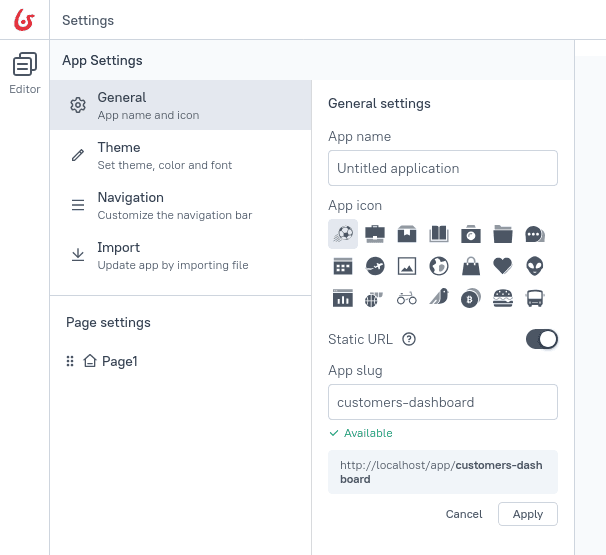
|
The application slug must be unique within your workspace. If the slug is already taken, you will be prompted to choose a different one. |
Configure page slugs
Once static URLs are enabled for the application, you can set custom slugs for each page:
-
In the editor, navigate to the page you want to configure.
-
Click the page name in the left panel and open the page settings.
-
Enter a custom slug in the Page slug field.
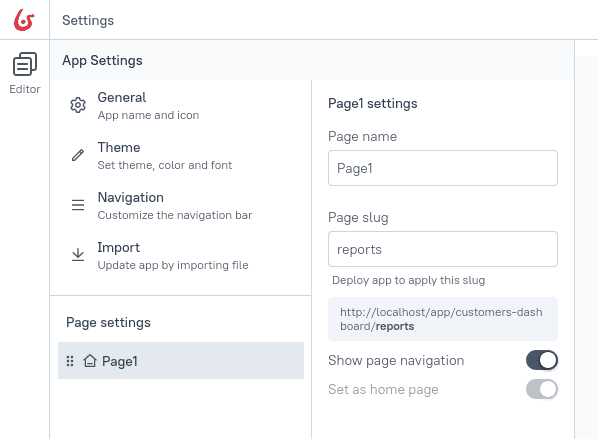
Each page slug must be unique within the application.